
How to Play
Everything you need to know to start your first run in Dungeons & Moles.
Devnet & Getting SOL
Dungeons & Moles is currently in Alpha and runs on Solana devnet. Before playing, make sure your wallet is configured to use devnet. You'll need devnet SOL to sign transactions (profile creation, session entry, etc.).
You can get free devnet SOL from any of these faucets:
Controls
Dungeons & Moles is played in landscape orientation across all platforms. Controls adapt depending on your device.
Mobile / Solana Seeker
PlaySolana PSG1
On the PSG1 console, the game is controlled entirely via the physical gamepad:
Controller hints appear at the bottom of the screen showing which buttons are available for the current context.
Desktop Web
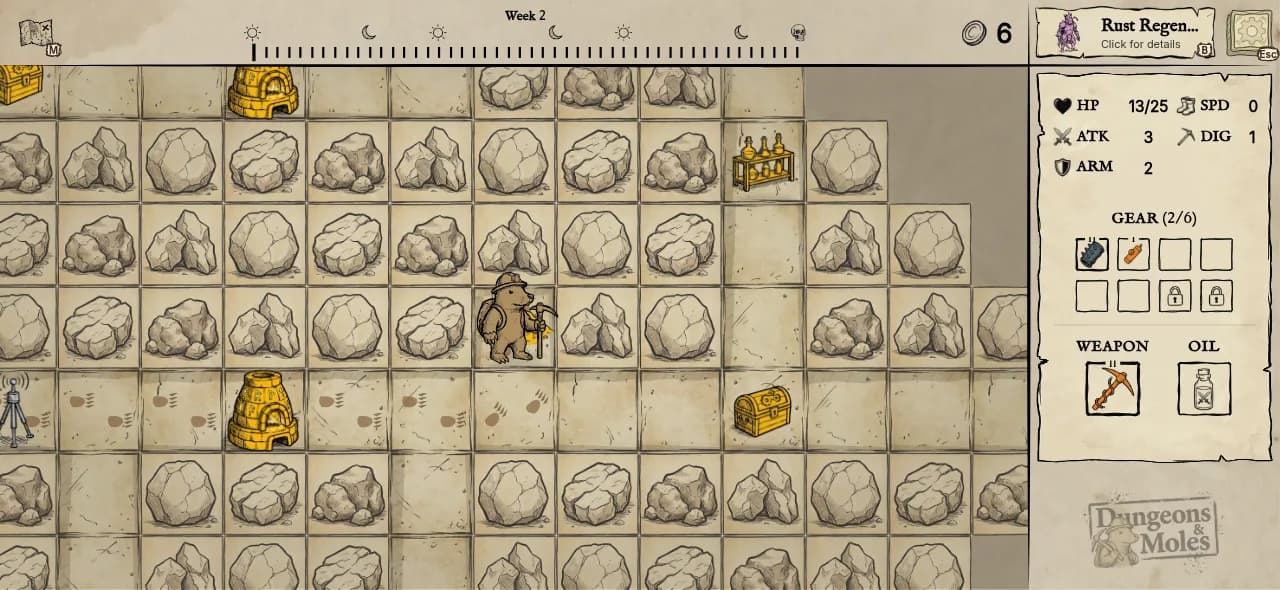
By default, app.dungeonsandmoles.com opens in Desktop Web: play with keyboard and mouse. WASD or the arrow keys move, Space/E/Enter interact, M opens the map overview, Esc closes menus or pauses, and the mouse clicks anything the touch UI would tap. A PSG1 simulator with on-screen controller controls is also available at /psg1 for testing the handheld layout in a browser.
Signing In
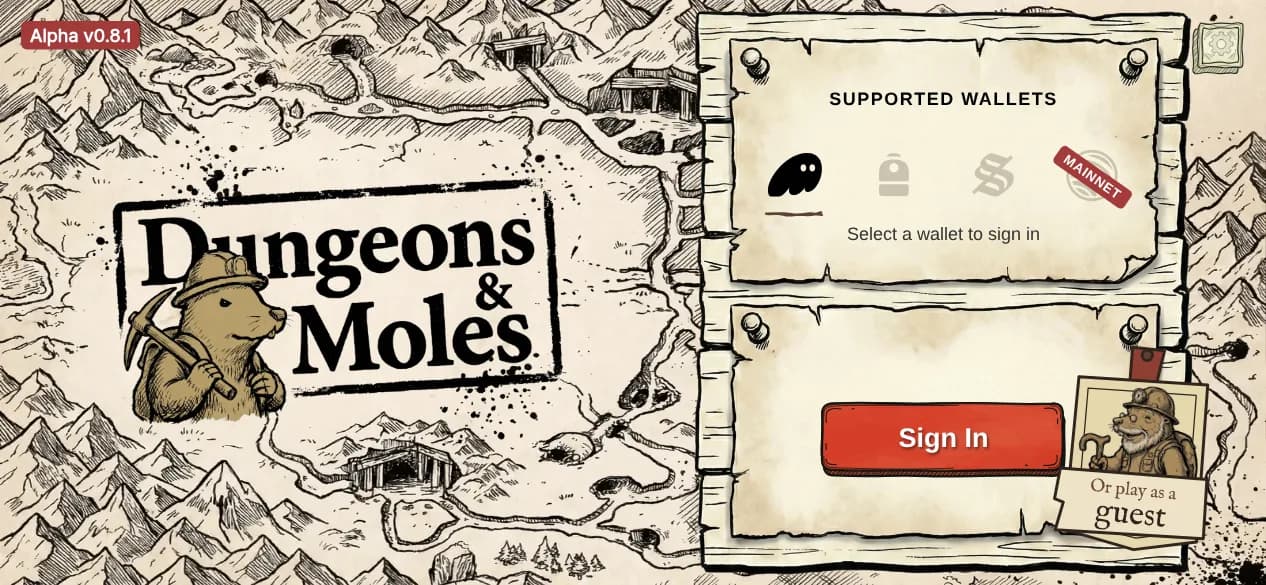
The very first time you open the game, you play a short guided run before you ever see the sign-in screen — see Your First Run. From the sign-in screen, connect a supported wallet (Phantom, Backpack, or Solflare) or continue as a guest. On Android, your phone's wallet picker (Mobile Wallet Adapter) handles the connection; on web, your installed browser extension is detected directly.
After connecting, you'll be prompted to create a player profile by choosing a name. This creates your on-chain profile, which tracks your campaign progress, unlocked items, and stats. New accounts start with 20 free campaign sessions.
Starting a Run
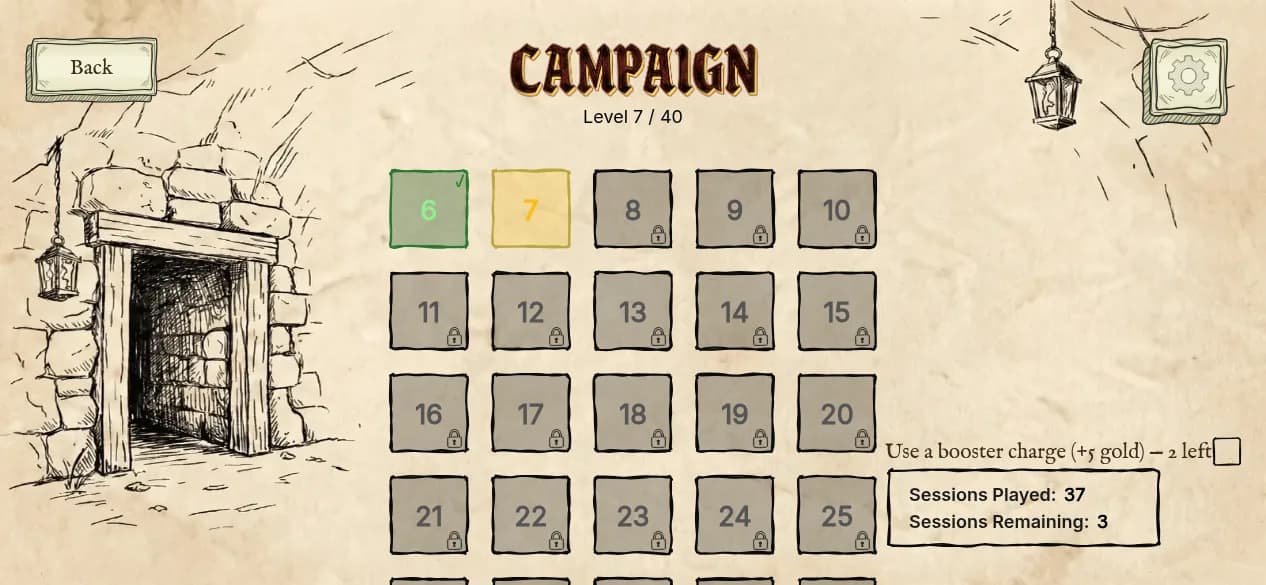
From the Hub Screen, select a game mode — Campaign, Gauntlet, Duels, or Pit Draft. Each mode has its own entry flow, but all exploration-based modes follow the same core loop: explore a seeded dungeon map, fight enemies, visit POIs, and face bosses at the end of each week. When you start a run, a session is created on-chain, generating a dungeon map unique to that session.
The Exploration Screen
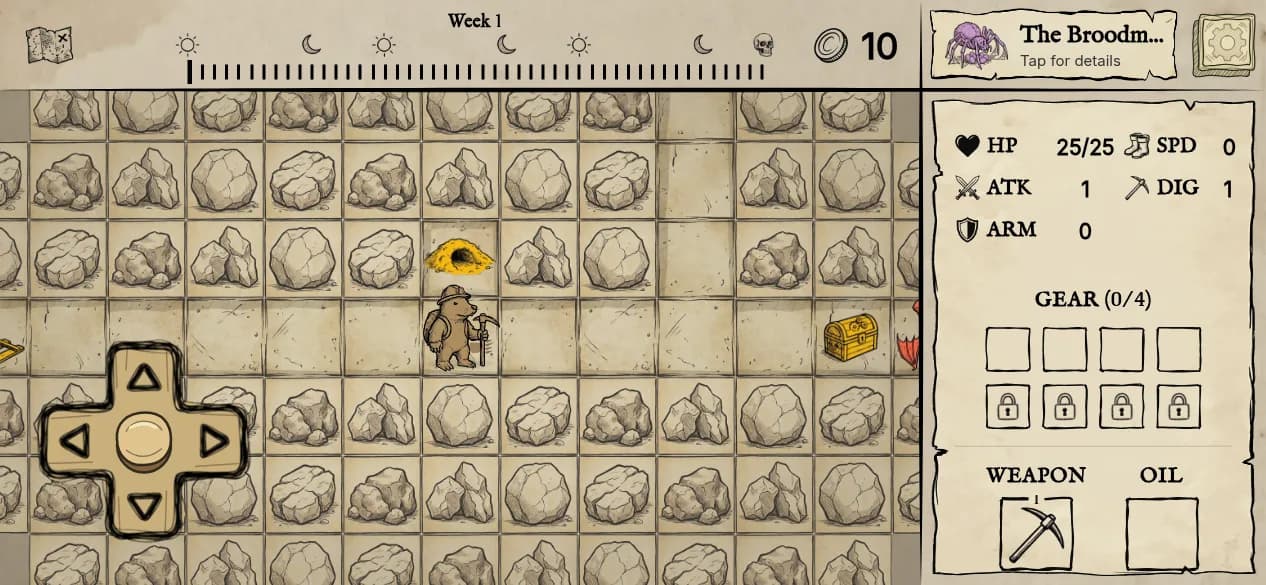
Once a run begins, you are placed on the exploration screen. This is where you spend the majority of your time.
Movement
Movement consumes your phase's move budget. Each phase has a fixed number of moves (50 during Day, 30 during Night).
| Tile Type | Move Cost |
|---|---|
| Floor | 1 move |
| Wall (digging) | max(2, 6 − DIG) moves |
Walking onto a floor tile costs 1 move. Walking into a wall tile requires digging, which costs more moves depending on your DIG stat. Higher DIG makes tunneling through walls faster.
Encountering Enemies & Points of Interest
As you explore, you will discover enemies and points of interest (POIs) placed on the map.
Boss Fights
Each week ends with a boss fight that triggers automatically after Night 3 concludes. Bosses are significantly stronger than field enemies and often have unique mechanics tied to specific status effects or combat patterns.
Defeating a boss advances you to the next week and unlocks 2 additional gear slots, allowing you to equip more items and grow stronger for the challenges ahead.
Skip to Boss
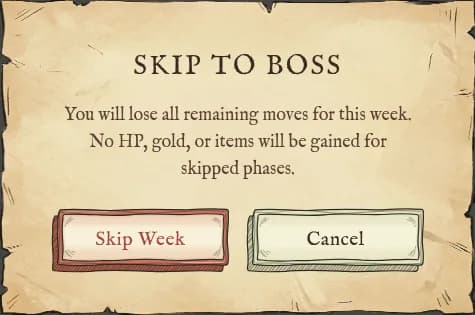
If you feel ready to face the boss early, you can skip to the boss fight at any point during the week by tapping the skull icon in the top bar. This immediately ends all remaining Day and Night phases for the current week and jumps straight to the boss encounter.
Victory & Defeat
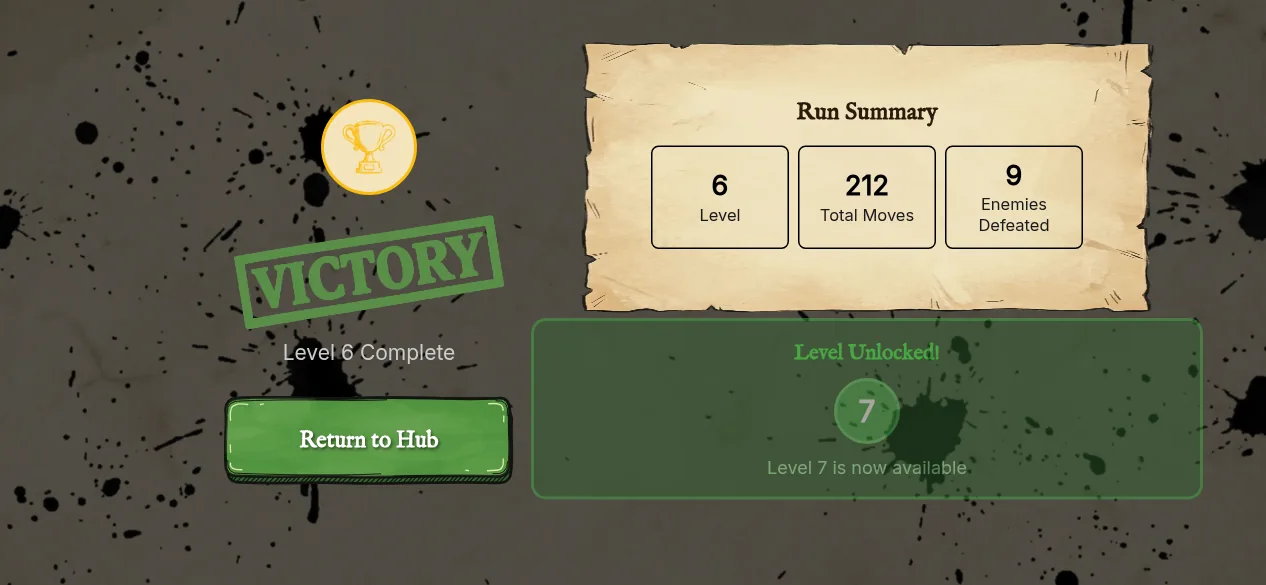
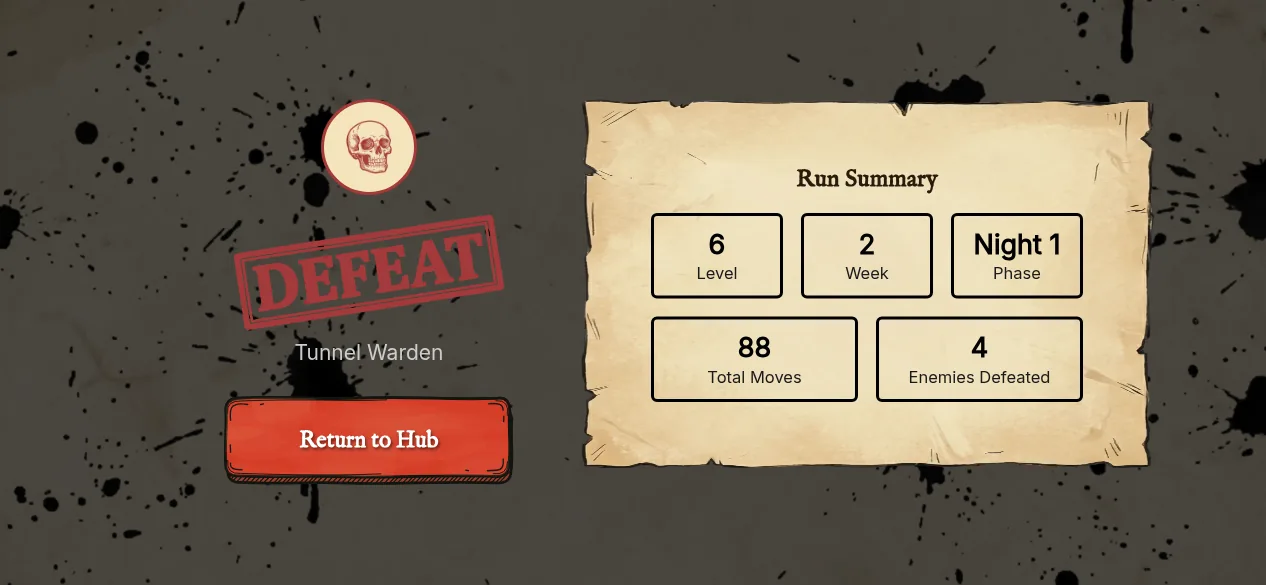
| Outcome | Condition |
|---|---|
| Victory | Defeat all 3 weekly bosses to clear the stage. |
| Defeat | Your HP reaches 0 during any combat encounter. The run ends immediately. |
In Campaign, there is no permadeath penalty beyond the run itself. You keep progress from previously cleared stages and can retry the current stage as many times as needed. In PvP modes, a defeat means losing your entry stake.
Settings
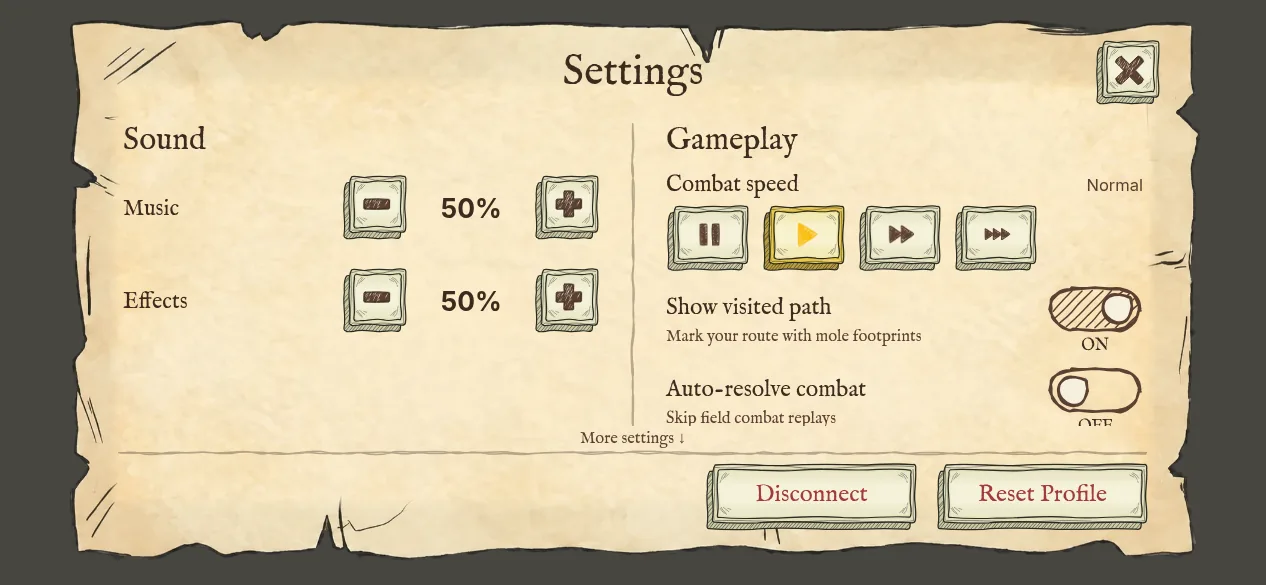
The settings menu is accessible via the Start button on PSG1 or the gear iconon the top right on mobile and Desktop Web. It covers audio, gameplay, and privacy options that can streamline your sessions — see Settings for the full list.