
Game Screens
A walkthrough of the main screens you will encounter while playing Dungeons & Moles, from the hub menu through exploration, combat, and end-of-run results.
Landing Screen
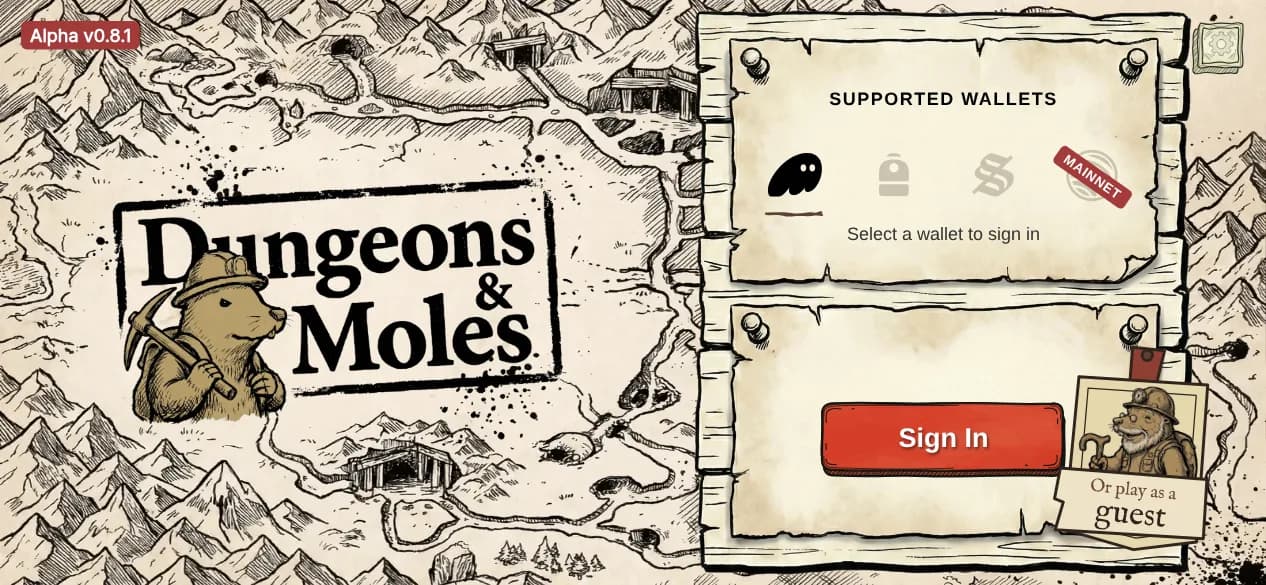
The first screen you see when launching the game. From here you can either connect a supported wallet to sign in or tap “Play as Guest” to try the game without an account. After signing in, you are taken to the Hub.
Hub Screen
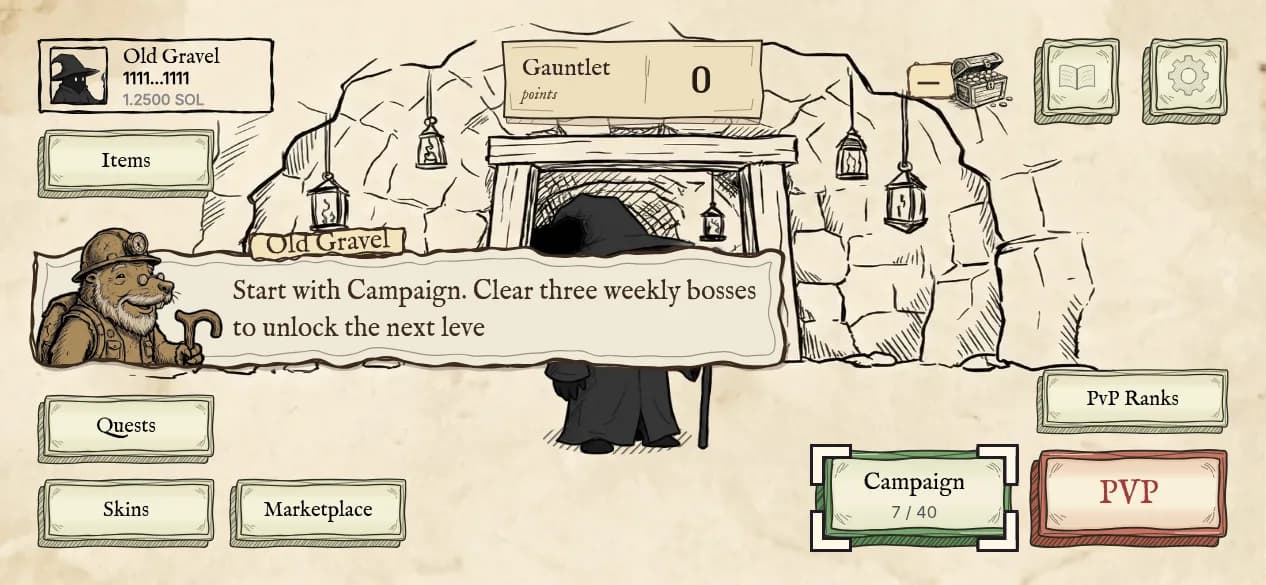
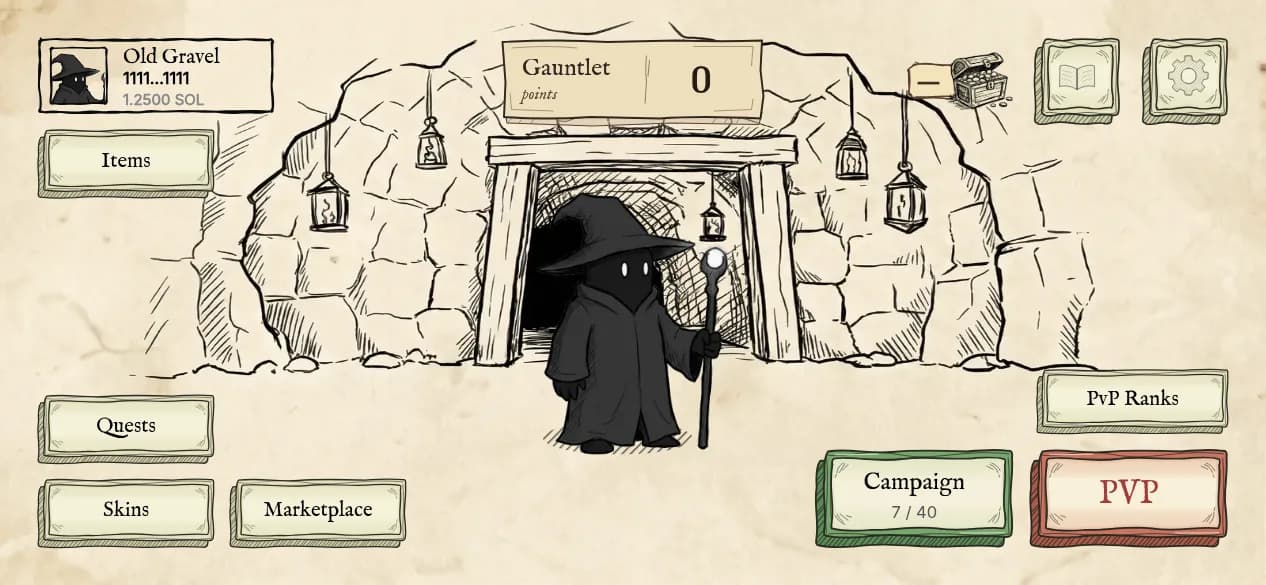
The Hub is the main menu and your starting point every time you launch the game. From here you can access all major game modes and manage your account.
The Hub has the following buttons:
Additionally, the Hub includes a Settings menu (gear icon) for audio, gameplay, and privacy preferences (see Settings), and a Profile menu for managing your account, viewing your in-game wallet balance, and withdrawing SOL.
The first time you reach the Hub after connecting a wallet, Old Gravel gives you a quick guided tour pointing out each of these — see Your First Run.
Campaign Select
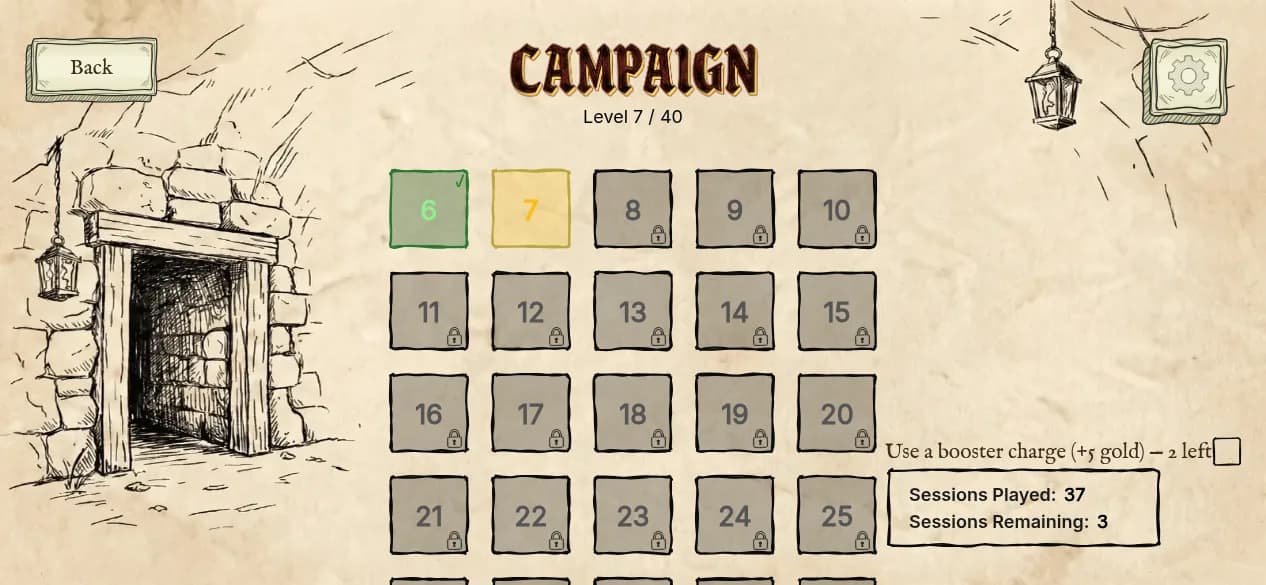
The campaign select screen lets you choose from 40 stages spread across 4 acts (10 stages per act). Each stage tile displays:
PvP Screens
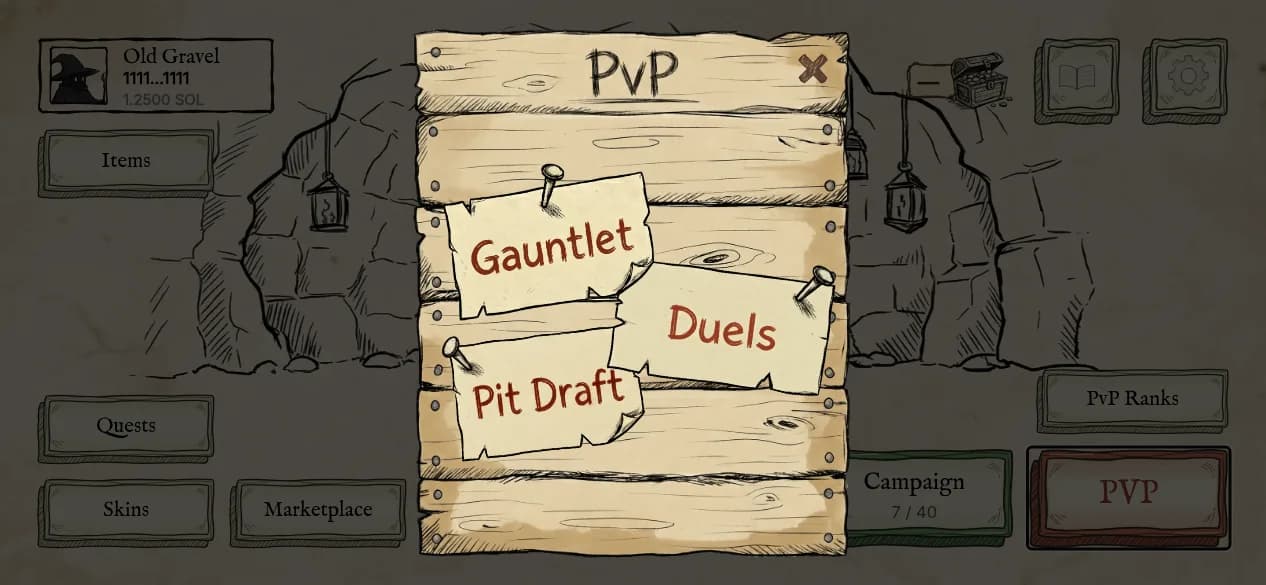
Tapping PvP from the Hub opens a mode selector where you choose between Gauntlet, Duels, and Pit Draft. All three PvP screens follow a similar layout:
Once a PvP session starts, the gameplay screen is the same as Campaign — you explore, fight, and build your loadout. The difference is in how opponents and rewards are resolved (see each mode's dedicated page for details).
Items Screen
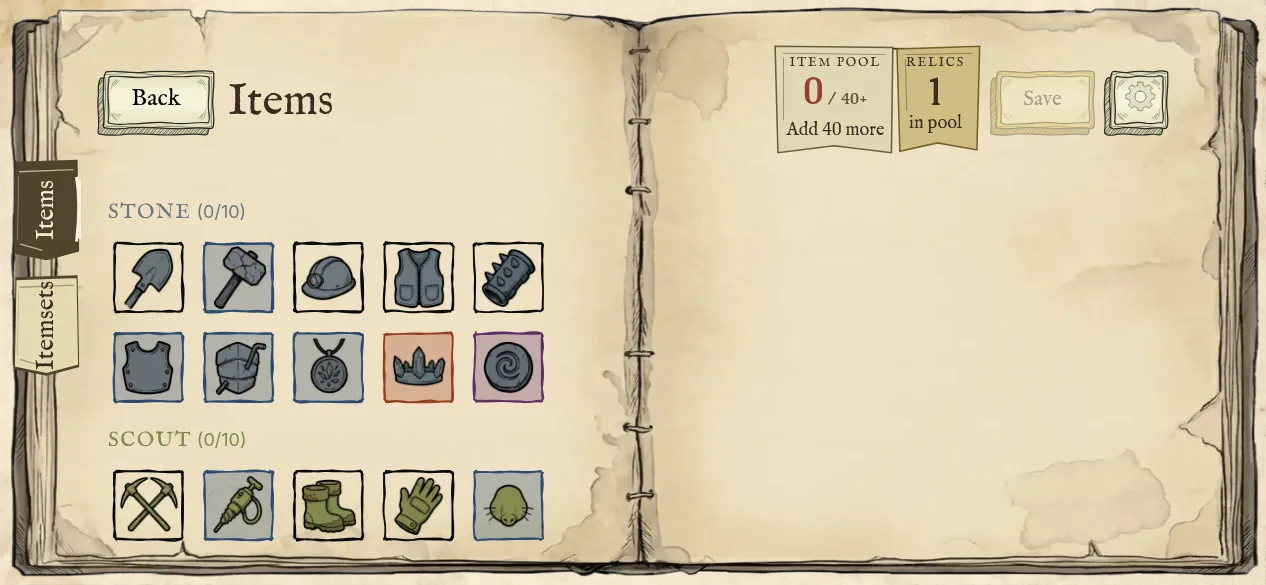
Manage your active item pool. Add or remove items, browse your full collection, and review item stats and effects. See the Items page for the complete item catalog.
Skins Screen
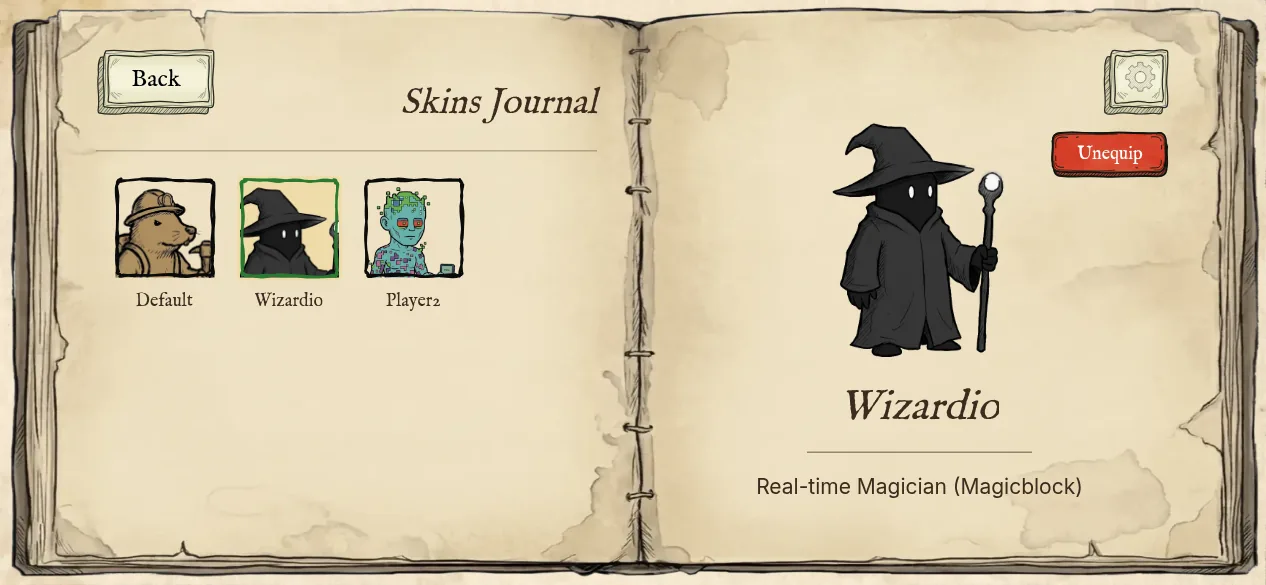
Browse and equip cosmetic skins for your mole character. Preview skins before equipping them. See Skins for more details.
Marketplace Screen
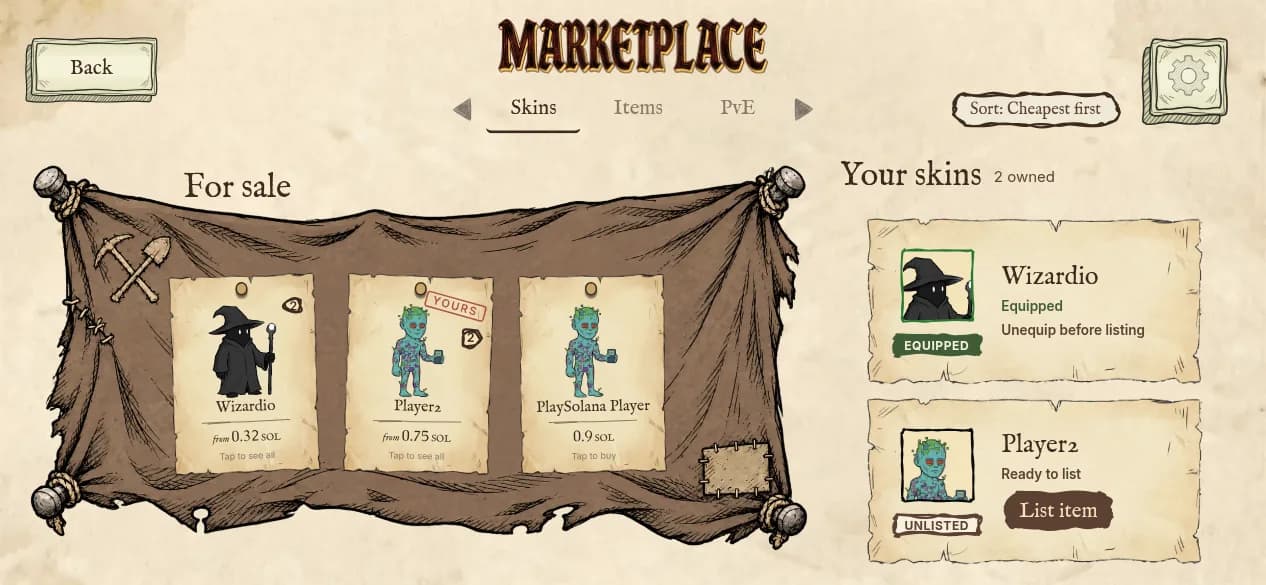
Buy, sell, and trade NFT skins and items with other players. List your own assets for sale or browse active listings. See Marketplace for more details.
PvP Ranks Screen
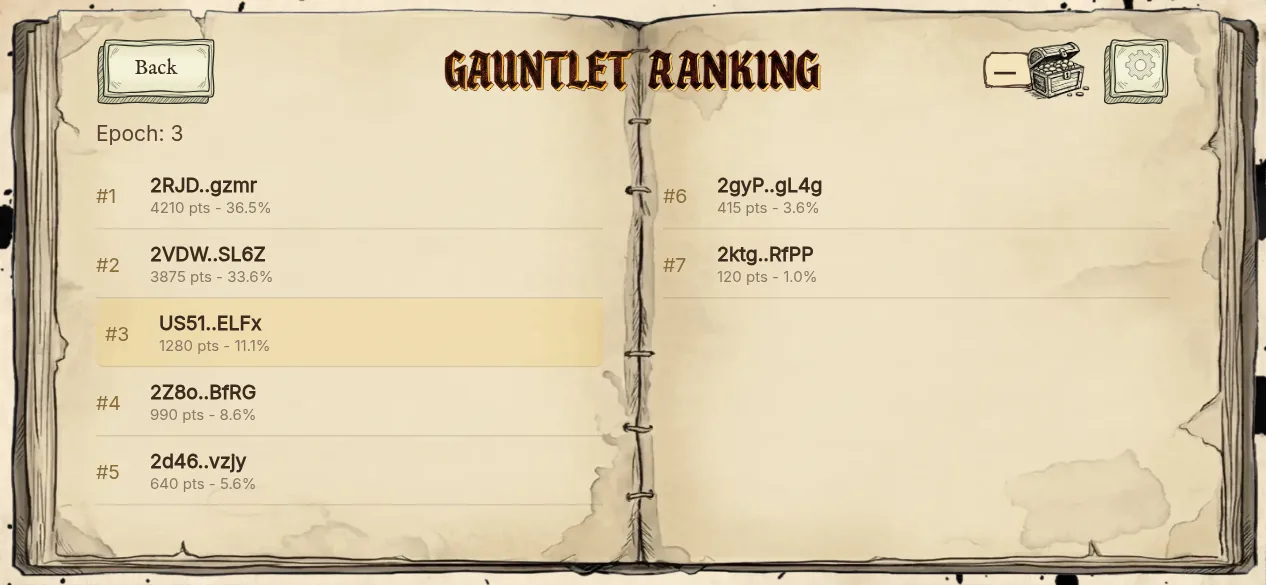
View the Gauntlet leaderboard, current epoch, prize pool balance, and your ranking among other players. See Gauntlet for details on the ranking and reward system.
Game Screen (Exploration)
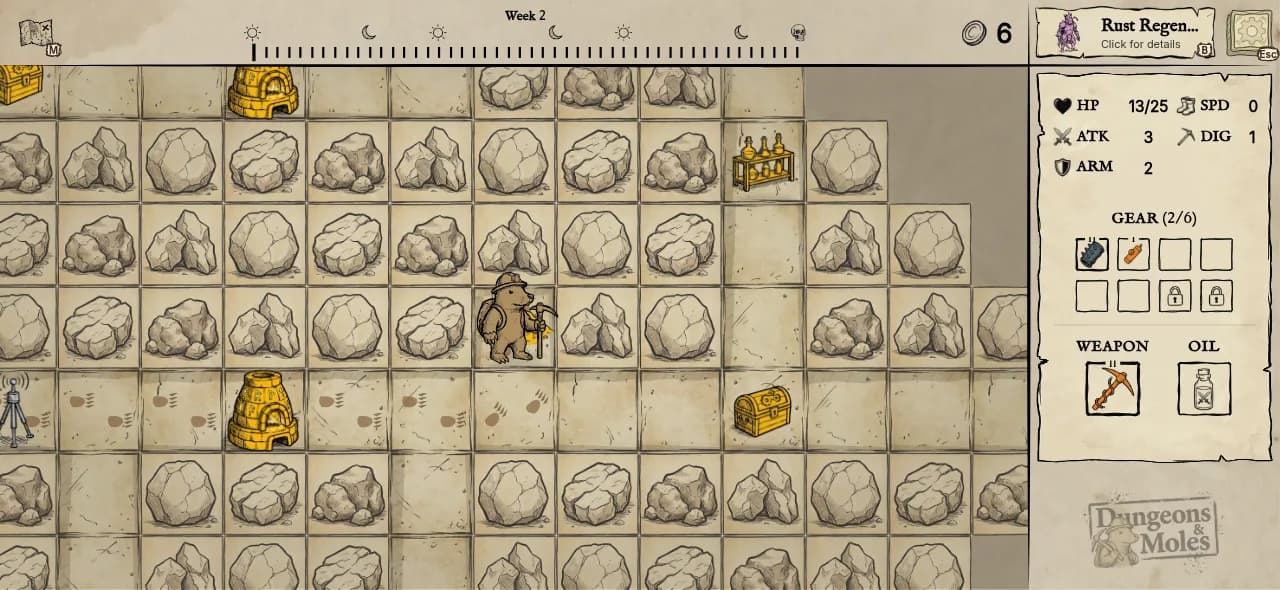
The main gameplay screen uses a landscape layout and is where you spend most of your time during a run. The screen is divided into several regions:
Combat Screen
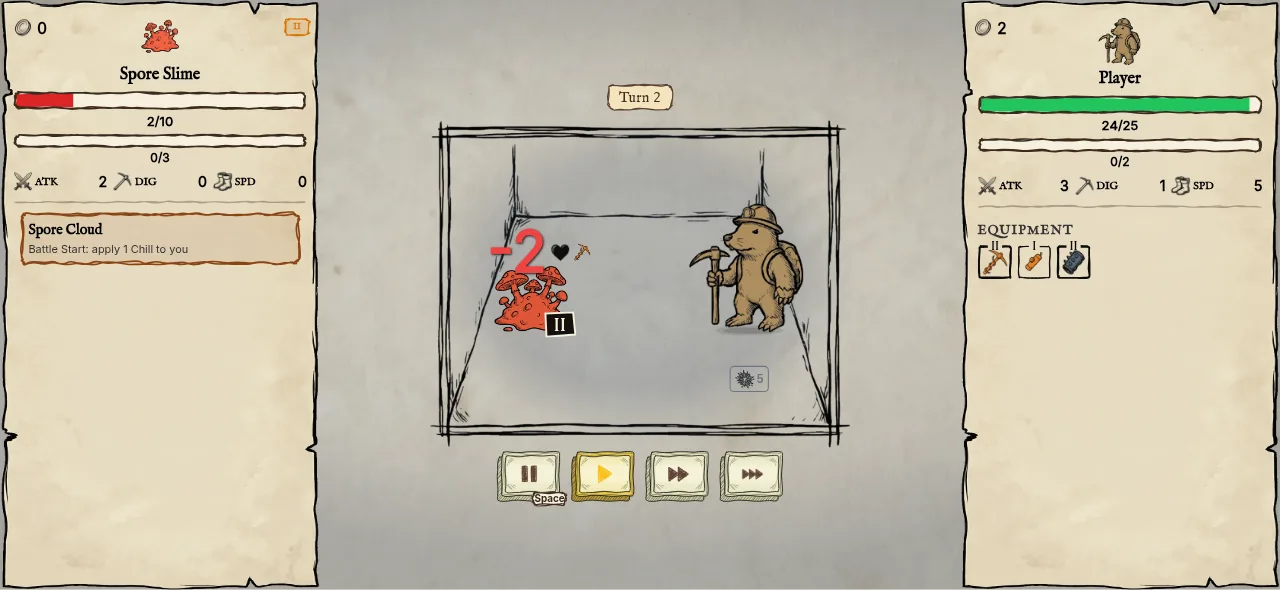
Combat is fully automatic. When you step onto an enemy tile, the game transitions to the combat screen, which displays:
Victory / Defeat
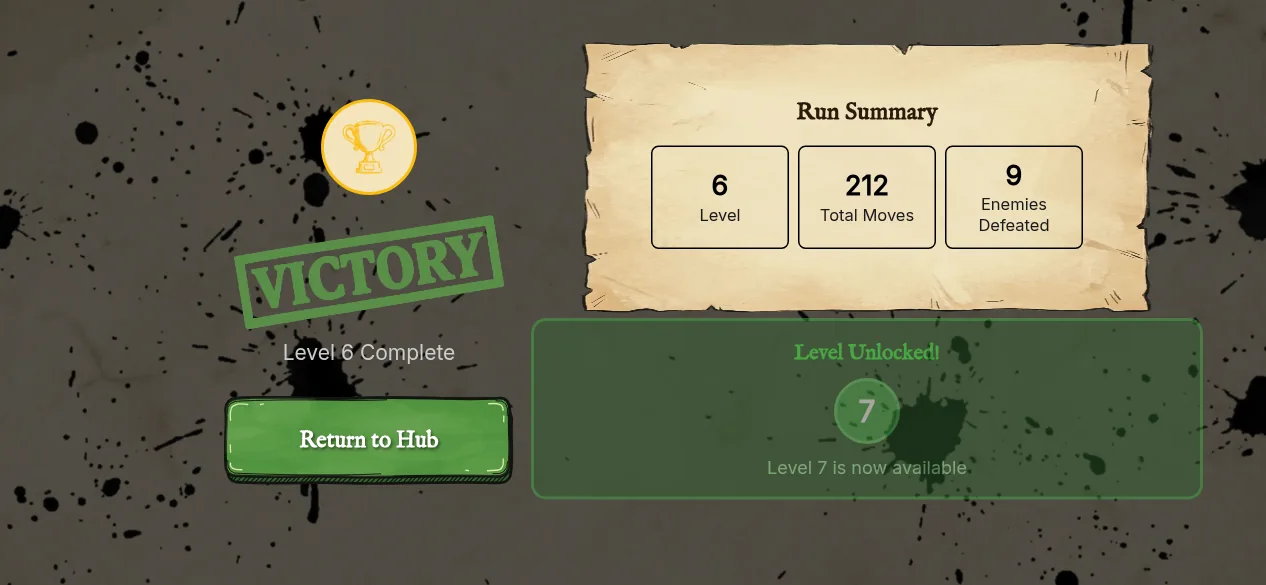
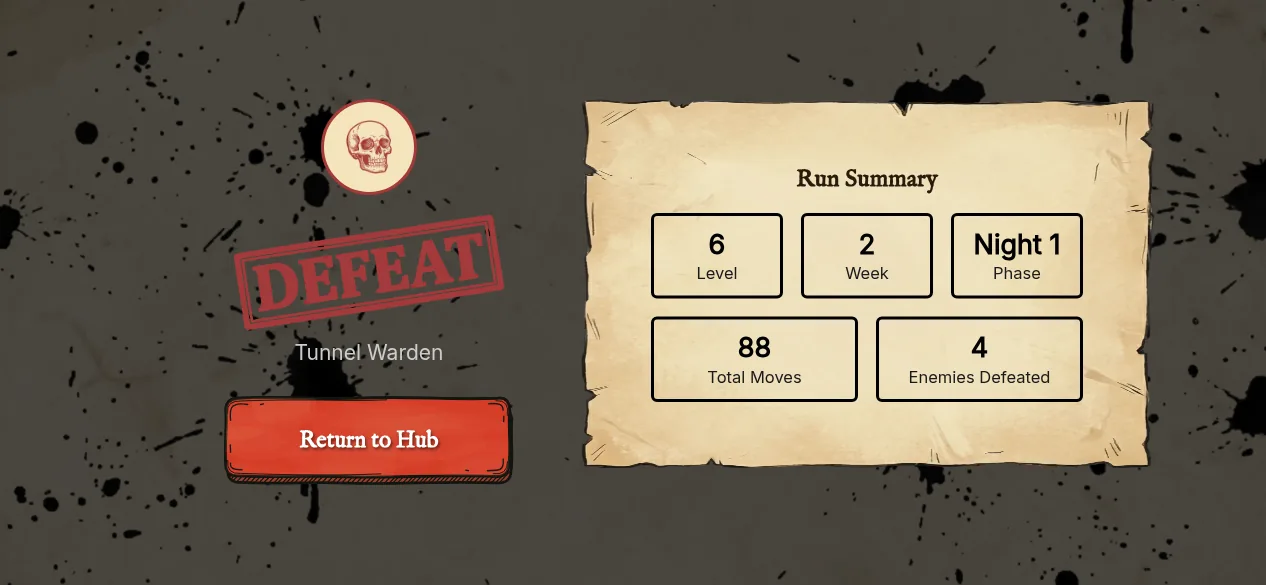
At the end of every run, a full-screen results screen appears. The layout differs depending on whether you won or lost.
Victory Screen
Shown after clearing a campaign stage, finishing a Gauntlet run, or completing a Duel. Displays:
Defeat Screen
Shown when your mole dies during a run. Displays: