
Settings
Audio, gameplay, and privacy options you can tune from the Hub.
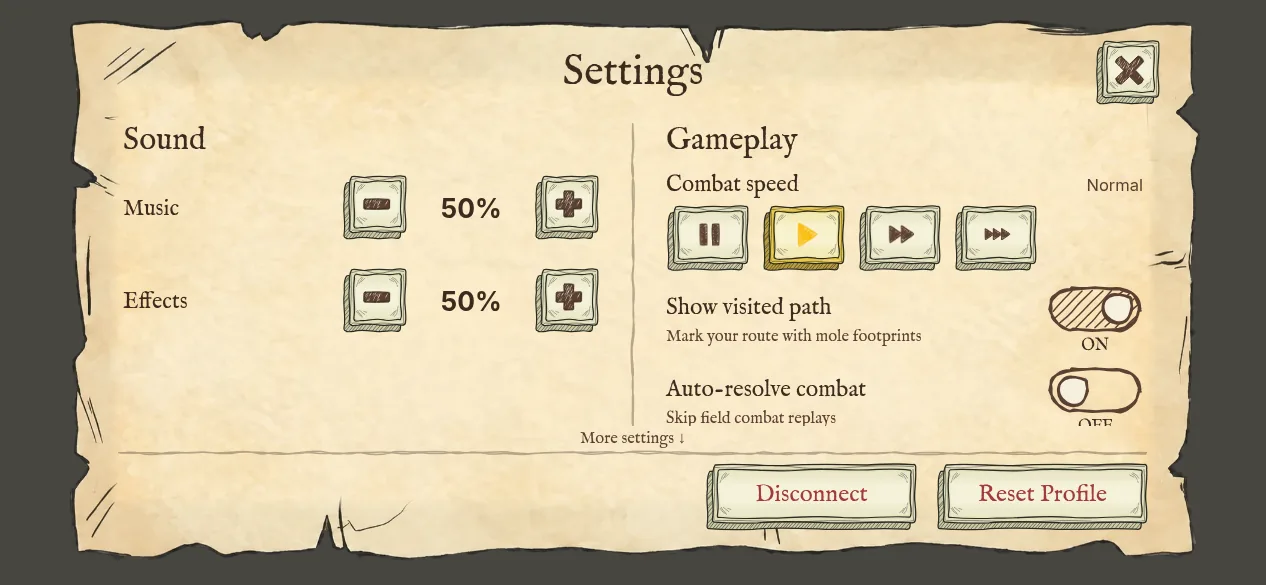
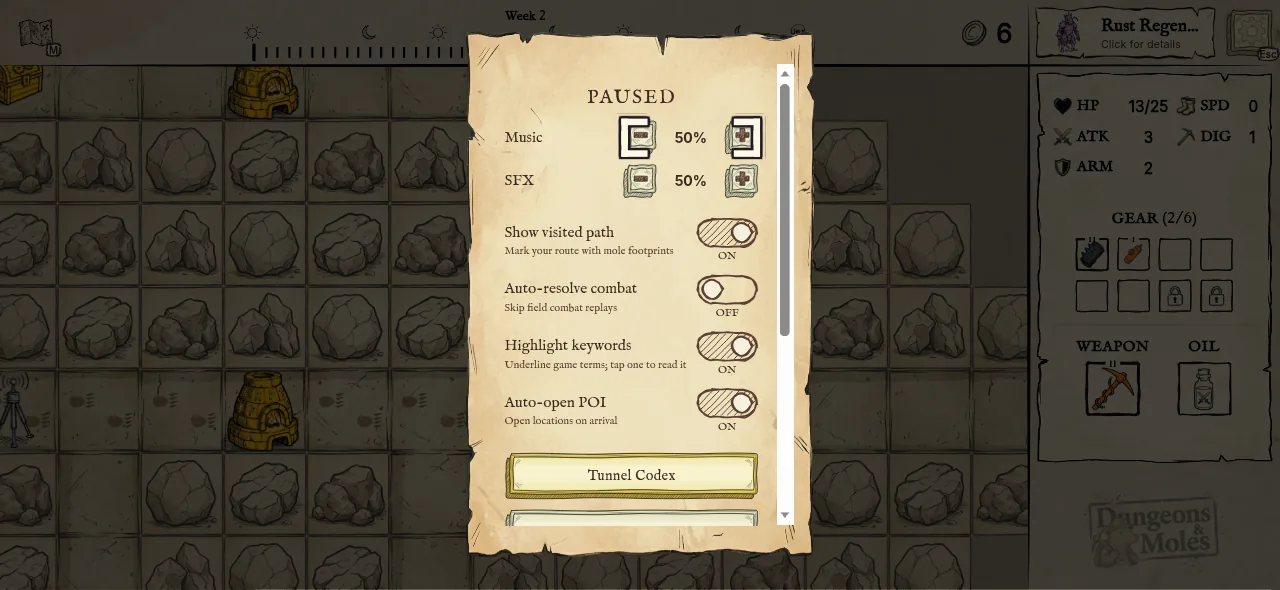
The settings menu is accessible via the Start button on PSG1 or the gear icon on the top right on mobile and Desktop Web.
| Setting | Description |
|---|---|
| Music Volume | Adjust the background music volume. |
| SFX Volume | Adjust the volume for sound effects (UI clicks, combat hits, POI interactions). |
| Combat Speed | Controls the playback speed of the combat screen when Auto-resolve is off. Options: Paused, Normal, Fast, and Very fast. |
| Auto-resolve Combat | Off by default. When enabled, combat encounters resolve instantly without showing the turn-by-turn combat screen. The result is applied immediately and you continue exploring. |
| Auto-open POI | On by default. When enabled, stepping onto a Point of Interest tile automatically opens its interaction window. Turn it off to confirm manually before interacting. |
| Show Visited Path | On by default. Marks the tiles you've already walked with footprints, so you can see your route at a glance. |
| Highlight Keywords | On by default. Underlines capitalized game terms (Chill, Wounded, Countdown, and the rest) in item and boss text. Tap an underlined word to read its definition. |
| Rollup Region | Set to Auto by default. Chooses which Ephemeral Rollup validator region hosts your next session. Leave it on Auto unless you have a reason to pin a specific region. |
| Share Play Data | On by default. Sends play analytics, linked to a hashed wallet ID, that help us balance the game. Turning it off stops analytics only; crash reports still send. See the Privacy Policy for details. |